
How it works
Take the reverb out of a recording, then give it a better room.
ReSpace works in three steps. It splits the song into its parts, takes the reverb out of each one, and then lets you put each part in a new room.
Step 1
Six parts from one song.
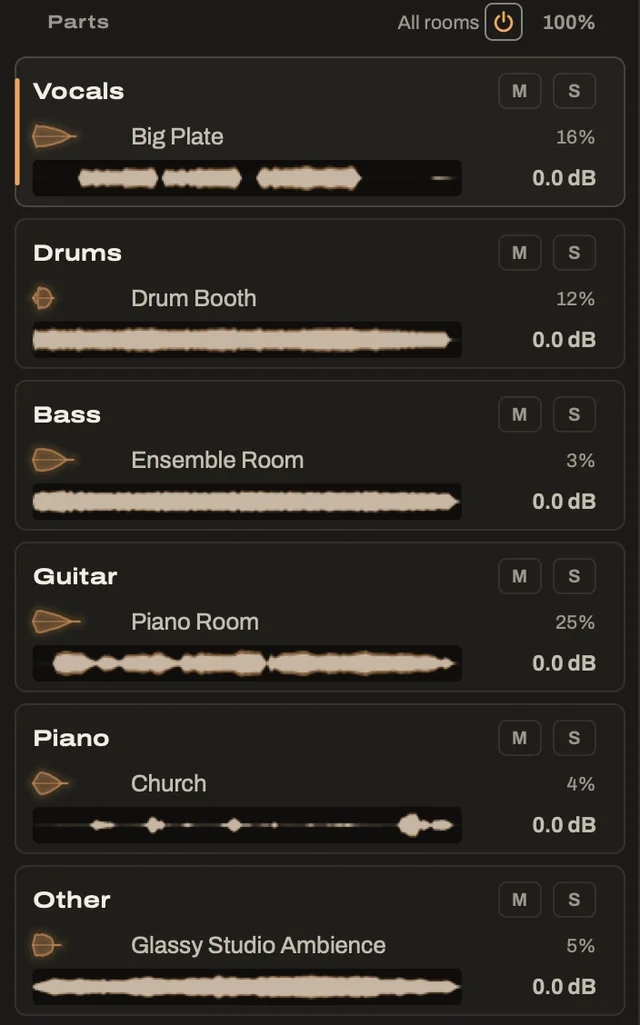
Start with a full mix, and ReSpace splits it into vocals, drums, bass, guitar, piano and everything else. Each part gets its own row in the parts list, with its room, its level and buttons to mute or solo it.
You can also start with a single track, like a vocal, a drum bus or a guitar. It stays in one piece and takes less time to process.
Step 2
The old room comes out.
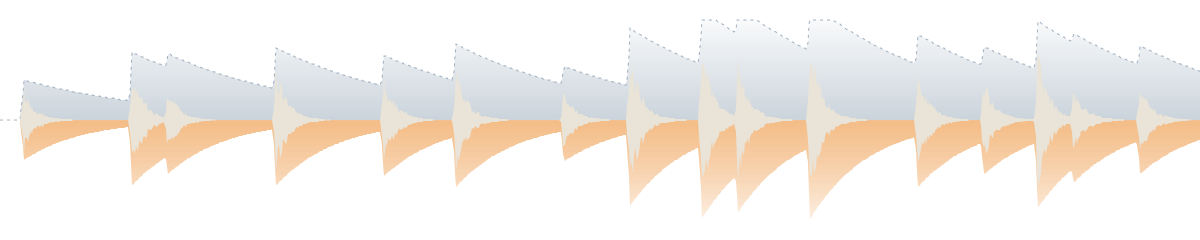
ReSpace removes the reverb each part was recorded with. What's left is the dry voice or instrument.
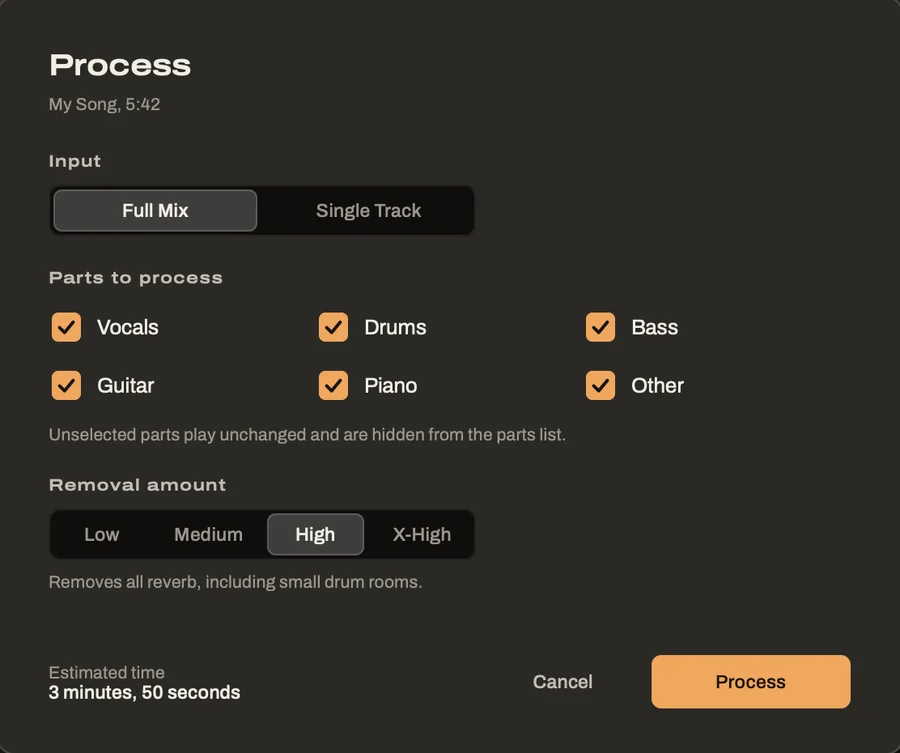
You choose how much comes out, with four removal strengths.
- Low removes halls, plates and long rooms, and keeps the short ones.
- Medium removes medium rooms as well, while small rooms and ambience stay.
- High removes nearly all of it, down to a small drum room.
- X-High takes out even more of a small room's ring. Drum hits can soften a little.
Step 3
A new room that already fits.
You don't start from scratch. ReSpace picks a room for each part that suits the instrument, such as a plate for a vocal or a real room for the drums.
The room it picks is matched in size and level to the reverb it removed, so the song sounds about as spacious as before. From there, you can change anything.

See it
The room you're replacing, drawn behind the new one.
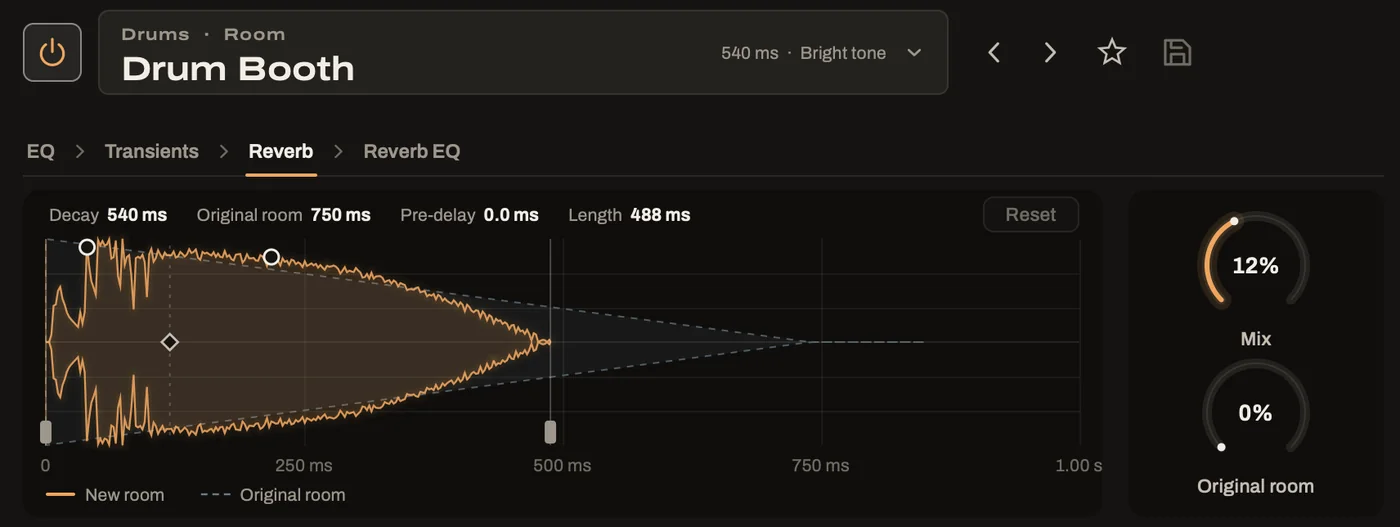
The Reverb page draws the new room's decay in amber. Behind it, a dashed outline shows the reverb the part was recorded with, measured as the song plays.
With both on screen, you can see whether the new room is shorter, longer or about the same as the old one.
Compare
Switch to the original at any moment.
The switch at the top of the window plays the song as it was recorded or with its new rooms. The switch is seamless, so you can flip back and forth while the song plays.
If the original room had something you liked, the Original room dial puts back as much of it as you want, part by part. A little of the original under a new room often sounds more natural.

On your computer
Everything happens on your own computer.
Private by design
ReSpace processes your audio on your own computer. Your songs are never uploaded.
Fast where it counts
ReSpace uses your computer's graphics processor whenever that's quicker. Before you start, it tells you how long a song will take.
Nothing is lost
Your original file is never changed. Every result is kept as well, and a song you've processed opens again without waiting.
Try ReSpace free for 7 days.
Every feature works during the trial, with a short beep every few seconds. Hear what ReSpace does for your own songs before you buy.